QuickScale System Requirements
Installing QuickScale
- Downloading QuickScale
- Installing QuickScale
- Installing the .NET Framework
- QuickScale Portable
- QuickScale Updates
Activating QuickScale
Using QuickScale
- Opening a drawing
- Calibrating (Known scale)
- Calibrating (Unknown scale)
- Change paper size
- Taking Measurements
- The Pages and Dimensions Panes
- Printing
- Changing colours
- Calculate Pitched Roof Areas
- Add areas together
- Add room volumes together
- Calculate a room volume
- Categories
- Export dimensions to excel
- Annotations
- Counting items
- Shuffle information to suit your BoQ
QuickScale Tips
- Switch between perimeter and area
- Find a measurement
- Move a measurement point
- Keyboard shortcuts
- Check for updates
- Red text in the Dimensions column
- Scrolling and panning
- Zoom with mouse wheel
- Perimeter incomplete
Troubleshooting
Using QuickScale
Change paper size
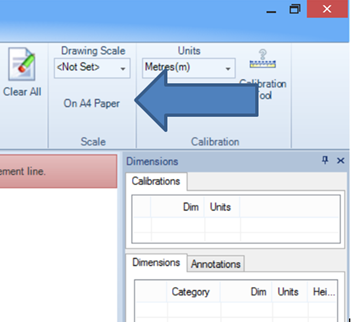
If QuickScale picks up a different paper size to the title block on the pdf, the drawing has been reduced or enlarged.
You cannot change the paper size in QuickScale. You must do two calibrations to scale the pdf instead.
Look at the support page showing Using QuickScale: Calibrating (unknown scale).