- Downloading QuickScale
- Installing QuickScale
- Installing the .NET Framework
- QuickScale Portable
- QuickScale Updates
- Opening a drawing
- Calibrating (Known scale)
- Calibrating (Unknown scale)
- Change paper size
- Taking Measurements
- The Pages and Dimensions Panes
- Printing
- Changing colours
- Calculate Pitched Roof Areas
- Add areas together
- Add room volumes together
- Calculate a room volume
- Categories
- Export dimensions to excel
- Annotations
- Counting items
- Shuffle information to suit your BoQ
- Switch between perimeter and area
- Find a measurement
- Move a measurement point
- Keyboard shortcuts
- Check for updates
- Red text in the Dimensions column
- Scrolling and panning
- Zoom with mouse wheel
- Perimeter incomplete
Using QuickScale
Taking-off measurements
Launch QuickScale and open a drawing.
If the drawing has not previously been calibrated, you must calibrate it first. See "Calibrating a drawing with a known scale" or See "Calibrating a drawing with an unknown scale" as appropriate.
Measuring a single distance (Line)
On the 'Home' toolbar, click the 'Line' button from the 'Measuring' section.
Navigate to the part of the drawing to be measured and click the mouse at the beginning of the line you wish to draw. Now move the mouse to the end of the line and click again.
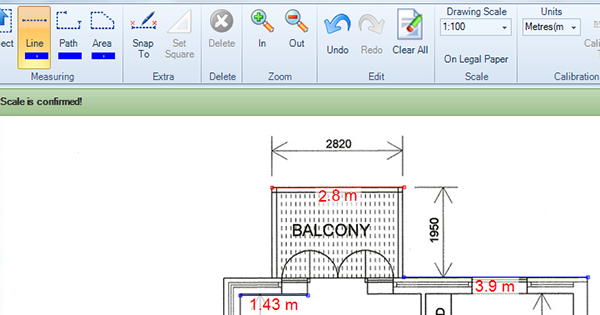
The Line tool is suitable for simple length, width, height measurements.
Measuring a continuous distance (Path)
On the 'Home' toolbar, click the 'Path' button from the 'Measuring' section.
Navigate to the part of the drawing to be measured and click the mouse at the beginning of the path you wish to draw. Now move the mouse to the next point on the path and click again. Continue along the path clicking on all the necessary points along that path.
To finish measuring the path, either press the "Esc" (escape) button on your keyboard, or, right-mouse click on the last point on the path and, from the pop-up menu, select "Complete".
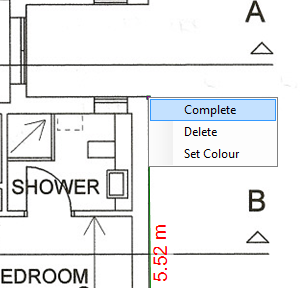
The Line tool is suitable for taking-off perimeters, skirtings, pipe runs, etc.
Measuring an area
On the 'Home' toolbar, click the 'Area' button from the 'Measuring' section.
Navigate to the part of the drawing to be measured and click the mouse at the beginning of the area you wish to measure. Now move the mouse to the next point of the area and click again. Continue around the area clicking on all the necessary points along the perimeter until you return to the start point.

To finish measuring the area, either press the "Esc" (escape) button on your keyboard, or, right-mouse click on the last point on the area and, from the pop-up menu, select "Complete".
Measuring the area of a circle/arch
To measure the area of a circular shape, such as an arch, select the Area tool button and click on a point on the circumference. Move the mouse around the circumference and click at regular intervals. The closer the click points to each other, the more accurate the measurement will be.
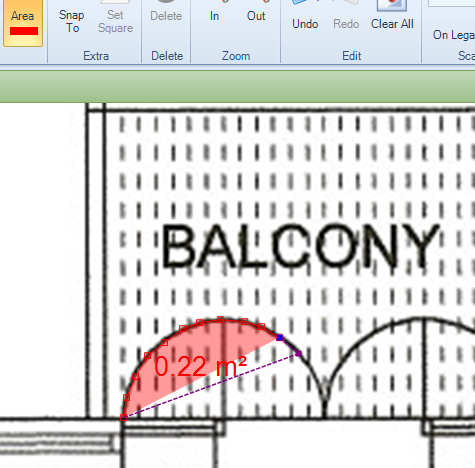
Switching between square (area) and linear (perimeter) measurements
Any area can be represented as either a squared unit of measure or a linear unit. In other words, you can toggle between area or perimeter measurements via the Dimensions pane. Just select the item's 'Units' entry in the Dimensions pane and, if it's an area, you'll be able to change from, for example, square metres to metres:

Delete, Clear All, Undo and Redo
We all make mistakes! QuickScale provides a range of options for deleting measurements - as well as for recovering any accidental deletions!
To delete a measurement, click the 'Select' button from the 'Measuring' area of the 'Home' tab and select the measurement to be deleted. You can now either:
- Press the 'Del' (Delete) button on your keyboard
- Click the 'Delete' button in the 'Delete' section of the 'Home' tab
- Right-mouse click and select the 'Delete' option from the pop-up menu
If, whilst drawing a measurement line, you make a mistake you can either click the 'Undo' button from the 'Edit' area of the 'Home' tab or press and hold the 'Ctrl' (Control) key on your keyboard and then press the 'Z' key.
To restore an item you just deleted, click the 'Redo' button from the 'Edit' area of the 'Home' tab. Alternatively, press and hold the 'Ctrl' (Control) key on your keyboard and then press the 'R' key.
To clear all measurements from a drawing (including calibrations), click the 'Clear All' button from the 'Edit' area or the 'Home' tab. You'll get a warning message because you cannot restore a 'Clear All' action. Therefore, if you wish to proceed, click the 'Yes' button.